Material and inventory tracking
Inventory Manager
The Inventory Manager is a powerful tool designed to help you easily keep track of your window film stock. Instead of guessing your remaining inventory, it automatically deducts the exact amount of material used from your active roll every time you make a cut. Additionally, the system calculates the material cost per cut, giving you complete control over your job expenses.
1. How to Enable Inventory Tracking
- Step 1: In the top menu bar, go to Settings and select Program settings.
- Step 2: Under the Inventory Management section, check the box next to Enable inventory tracking.
- Step 3: Use the dropdown menu to choose how you want to be notified when a roll is running low. You can select Popup, Email, or Both.
- Step 4: Click Save settings to apply your changes.
2. Adding Rolls to Your Inventory
Once the feature is enabled, you need to add your current stock into the system.
- Open Tool: In the top menu bar, go to Tools and select Inventory management.
-
Fill in Details:
Under the Add new roll section, fill in the following information:
- Brand: The manufacturer of the film.
- Series: The specific film series.
- Width: The width of the material.
- Length: The total meters on the roll.
- Warn at: The threshold (in meters) for low-stock warnings.
- VLT: The Visible Light Transmission percentage.
- Price: Cost per meter (required if you want the program to calculate the cost per cut).
- Save Roll: Click the Add button to save the roll to your inventory.
3. Tracking History & Costs
- View Log: Inside the Inventory Management dialog box, navigate to the History & Cost tab. Here, you can view a complete log of your cutting history, including the date and time, the vehicle model you cut for, the material used, the amount deducted, and the calculated cost for that specific job.
Using Inventory Manager When Cutting
With your settings configured and rolls added, the system is ready to use. When setting up a cut, pay close attention to the top header in the software.
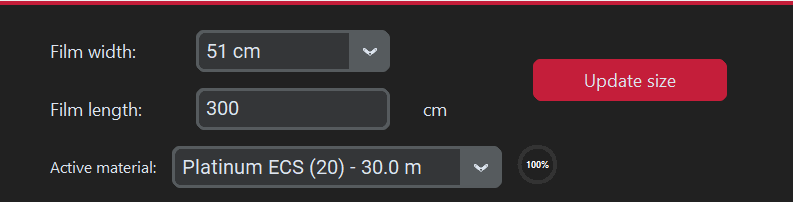
Select your film width and active material in the top header before cutting.
Crucial Step for Accurate Tracking:
You must select the correct Width in the header. The software will automatically fetch your available rolls linked to that specific width. Then, under Active Material, select the exact roll you are cutting from. It is very important that you always have the correct width and active material selected for the Inventory Management system to function correctly.
You must select the correct Width in the header. The software will automatically fetch your available rolls linked to that specific width. Then, under Active Material, select the exact roll you are cutting from. It is very important that you always have the correct width and active material selected for the Inventory Management system to function correctly.
Was this article helpful?
Contact Support