Resize templates with resize tool
Resize Templates
Sometimes a specific installation requires a template to be slightly larger or smaller than the standard patterns in our database. The Resize Tool gives you the flexibility to adjust the height and width of any door or back window template to suit your personal preference.
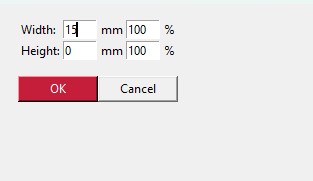
Enter precise measurements or use percentage scaling to adjust the template.
How to use the Resize Tool
- 1. Select Template: Click on the loaded template on your workspace (canvas) that you wish to adjust.
- 2. Open Tool: Go to the Tools section on the left. Click the Resize Icon (you can hover over the icon to confirm the name says "Resize Tool").
-
3. Adjust Size:
A dialog box will appear. You can adjust the size in two ways:
- Width & Height: Enter the exact new dimensions.
- Percentage: Enter a percentage to scale the template up or down.
- 4. Apply: Click OK. The template on your canvas will immediately update to the new size.
Note on Units (mm vs Inches):
By default, dimensions are shown in millimeters (mm). However, if you have changed the general software settings to Imperial, the Resize Tool will display and accept values in inches.
By default, dimensions are shown in millimeters (mm). However, if you have changed the general software settings to Imperial, the Resize Tool will display and accept values in inches.
Was this article helpful?
Contact Support